Google Business Profile (GBP) is one of the most valuable free tools available to any Malaysian SME. A complete, verified listing means your business appears in Google Maps and local search results — directly in front of people who are already looking for what you offer.
Setting it up correctly takes less than an hour. Here is the full process.
Before You Start — What You Need
Have these ready before you begin:
- A Google account (Gmail address) — use your business email if you have one, or a personal Gmail
- Your business name, exactly as you want it to appear publicly
- Your business address (or service area if you operate without a fixed shopfront)
- Your business phone number
- Your operating hours
- 5 to 10 photos of your premises, team, or work (JPEG or PNG format, at least 720 x 720 pixels)
- A short business description (up to 750 characters)
Step 1: Go to Google Business Profile
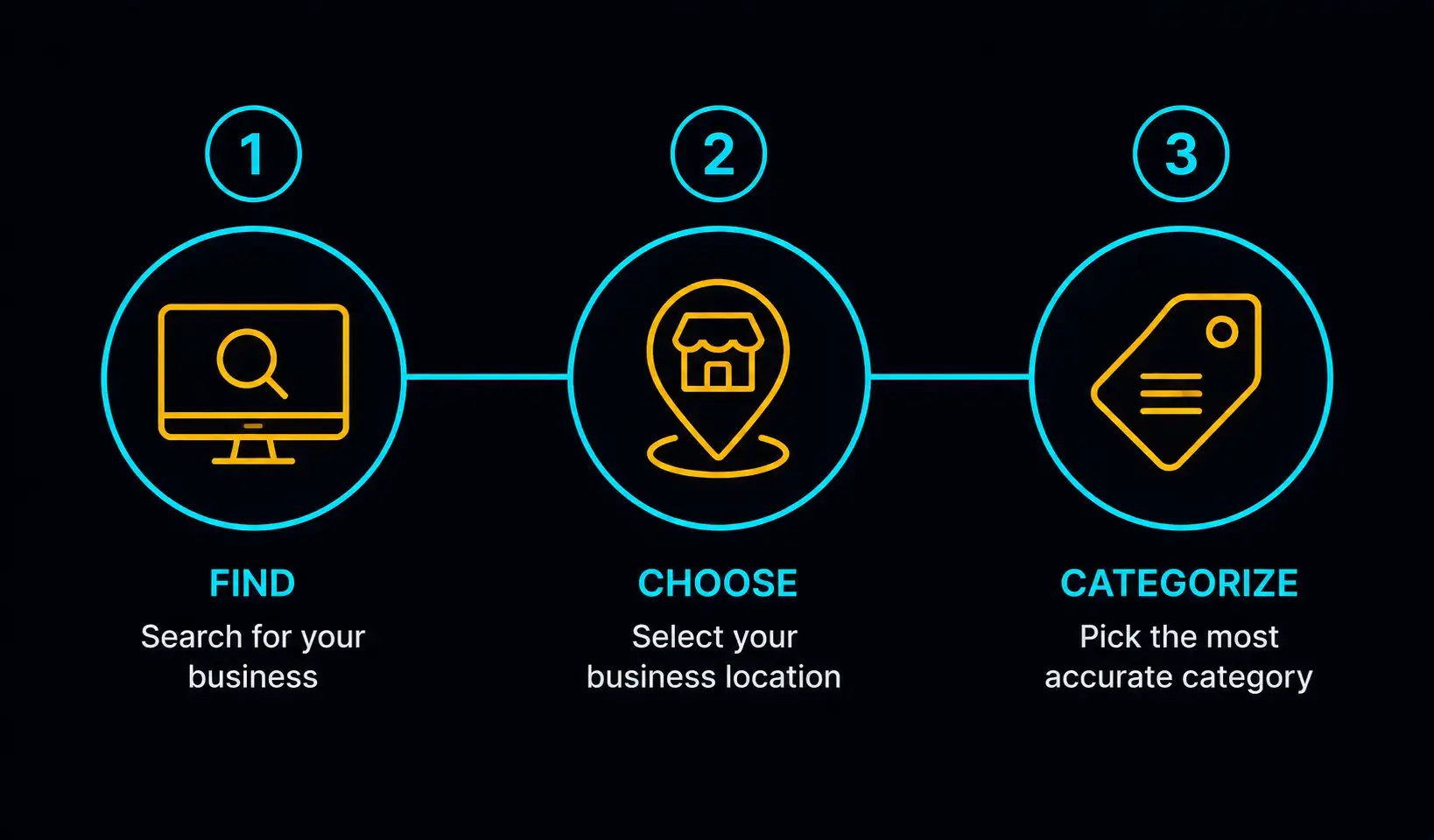
Open your browser and go to business.google.com. Sign in with your Google account.
Click "Add your business" or "Manage now" if you have previously started a listing.
Step 2: Enter Your Business Name
Type your business name exactly as it should appear — including any "Sdn Bhd", "Enterprise", or trading name you use publicly. Google will search for existing listings as you type.
If your business already appears in the dropdown, it means a listing exists — possibly auto-generated by Google from public data. Select it and claim it rather than creating a duplicate.
If it does not appear, select "Add your business to Google" and continue.
Step 3: Choose Your Business Category
This is one of the most important fields. Your primary category tells Google what type of business you are, which determines when you appear in search results.
Be specific. "Air Conditioning Contractor" is better than "Contractor." "Malay Restaurant" is better than "Restaurant."
You can add secondary categories later (for example, a hardware store that also offers key cutting might list "Hardware Store" as primary and "Locksmith" as secondary). Start with the one that best describes your main service.
Step 4: Add Your Location
If you have a physical shopfront or office that clients visit, select "Yes, I have a physical location customers can visit" and enter your address.
If you go to your clients (e.g. you are an HVAC technician, a mobile caterer, or a home service provider), select "No, I deliver goods and services to my customers." You will then be asked to specify your service area — this can be by city, district, or state.
You can set both a physical address and a service area if you operate from a premises but also travel to clients.
For Malaysian addresses, use your full postcode and state. Google Maps coverage in Malaysia is comprehensive — your address should be found correctly.
Step 5: Add Your Contact Details
Enter your business phone number. Use the number you actually answer — this will be the primary contact for anyone who finds you on Google Maps.
If you have a website, add the URL here. If you do not yet have one, you can leave this blank and add it later. Having a website linked to your GBP listing improves your local search ranking and gives visitors a place to learn more before calling.
Step 6: Verify Your Business
Google requires verification to confirm you are the legitimate owner of the listing. The verification options available in Malaysia are:
Postcard by mail: Google mails a physical postcard to your business address with a 5-digit verification code. This typically takes 5 to 14 days. Once it arrives, log back in and enter the code.
Phone or SMS: Some businesses are offered instant verification by phone or SMS. If this option appears, it is the fastest route.
Video verification: Google has been rolling out video verification as an option — you record a short video showing your business premises or signage. Follow Google's prompts if this option is offered to you.
Email: Available for some businesses. Check the options shown to you after submitting your listing.
Do not start editing your listing extensively until verification is complete — unverified listings have limited visibility.
Step 7: Complete Your Profile
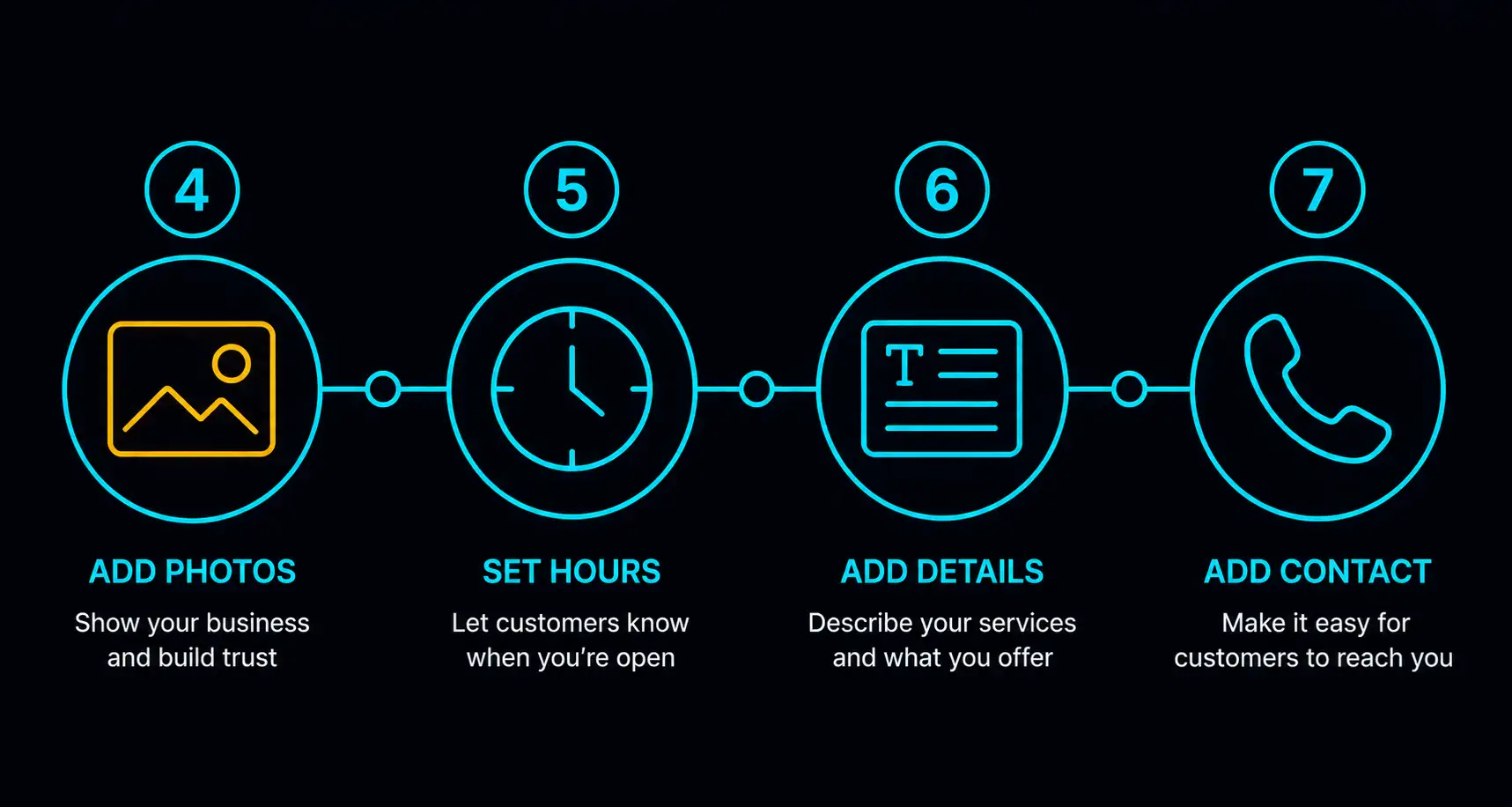
Once verified, return to your listing and complete every section. Incomplete profiles rank lower than complete ones.
Business description: Write 2 to 3 sentences describing what you do, who you serve, and what makes your business reliable. Keep it factual — no promotional language like "best in Malaysia." Include your primary service and location naturally. Example: "Alphamatic Airconditioning provides residential and commercial aircond installation, servicing, and repair across the Klang Valley. We have been operating since 2018 and are certified to service all major brands."
Operating hours: Enter accurate hours including public holidays. You can set special hours for festive periods (Hari Raya, Chinese New Year, Christmas) separately.
Photos: Add a minimum of 5 photos. Include:
- Your shopfront or office exterior (helps clients recognise you)
- Interior or workspace
- Your team or technicians at work
- Completed projects or products
- Any certificates or accreditations
Photo quality matters. Blurry phone photos from 2019 will not help. Take fresh photos in good lighting.
Services: Add your specific services as line items. For each service, you can add a name, description, and price range. This helps Google understand what you offer in detail and can improve your appearance for specific service searches.
Step 8: Start Collecting Reviews
Reviews are one of the most powerful factors in local search ranking — and the most visible trust signal to potential clients.
The most effective way to get reviews is to ask satisfied clients directly. Send them a WhatsApp message along the lines of:
"Hi [name], glad the job went well. If you have a moment, a quick Google review would really help my business. Here is the link: [your GBP review link]"
To get your review link, go to your GBP dashboard, click "Get more reviews", and copy the short link Google generates.
Aim for at least 10 reviews before you start spending money on advertising. Reviews convert browsers into callers.
Common Mistakes to Avoid
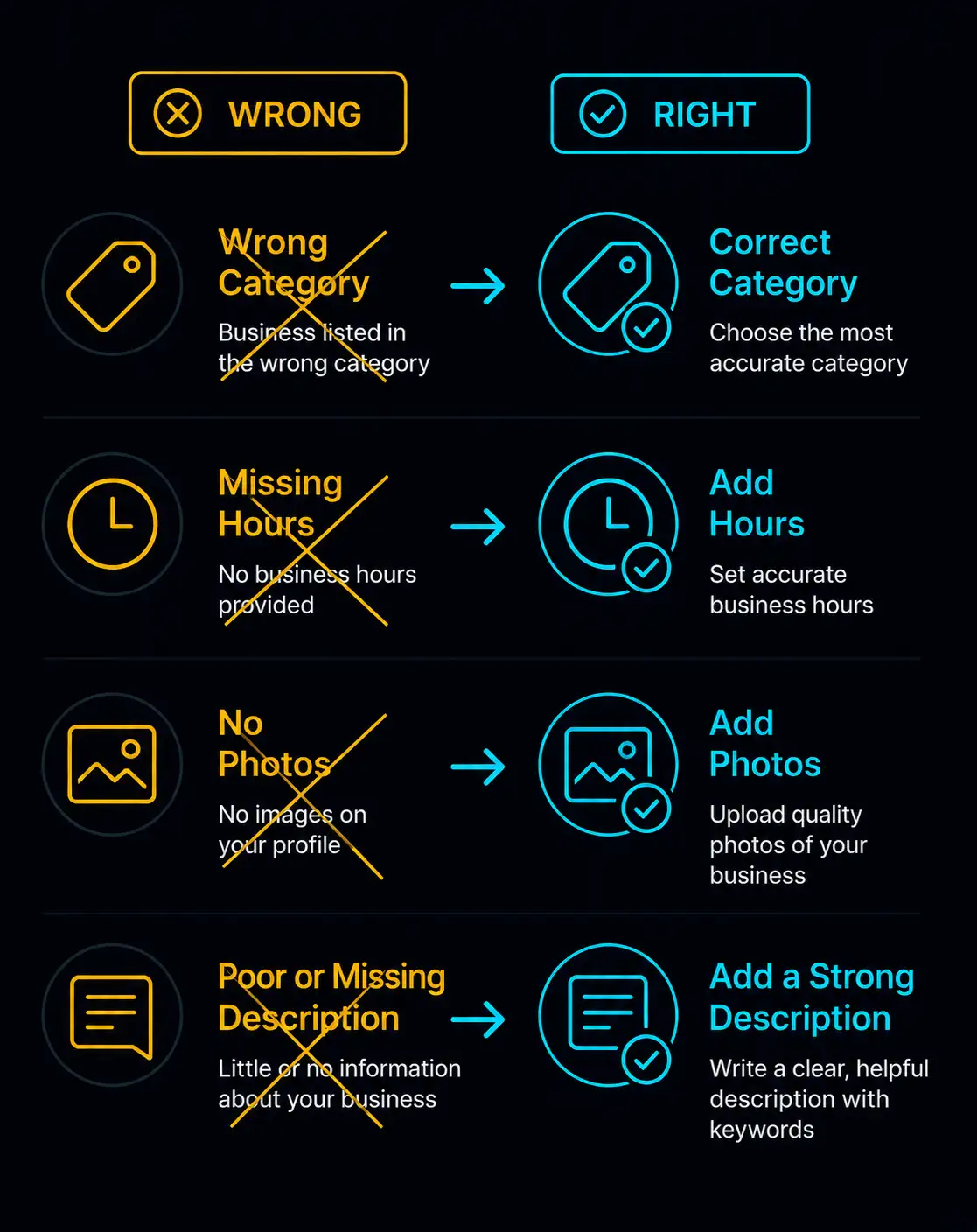
Keyword-stuffing your business name. Do not call yourself "Ahmad Hardware Store Best Price KL" — this violates Google's guidelines and can result in your listing being suspended. Use your actual trading name.
Inconsistent address format. Your address on GBP should match exactly what is on your website, your Facebook page, and any other online presence. Small differences (e.g. "Jalan" vs "Jln") can affect how Google validates your listing.
Leaving hours blank. A listing without hours appears less trustworthy. Clients may assume you are not operating.
Ignoring the Q&A section. Anyone can post a question on your GBP listing, and anyone can answer it. Check this section regularly and answer questions yourself to control the information.
Not responding to reviews. Responding to all reviews — positive and negative — shows you are an active, professional business. Google rewards engagement.
How Long Before You See Results?
A new listing typically starts appearing in Google Maps results within 1 to 2 weeks of verification. Ranking prominently in the local pack (the top 3 map results) takes longer — usually 1 to 3 months of consistent activity: new photos, responses to reviews, and keeping your hours and contact details accurate.
GBP is not instant — but it is free, and for local search visibility it is one of the highest-return activities available to a Malaysian SME.